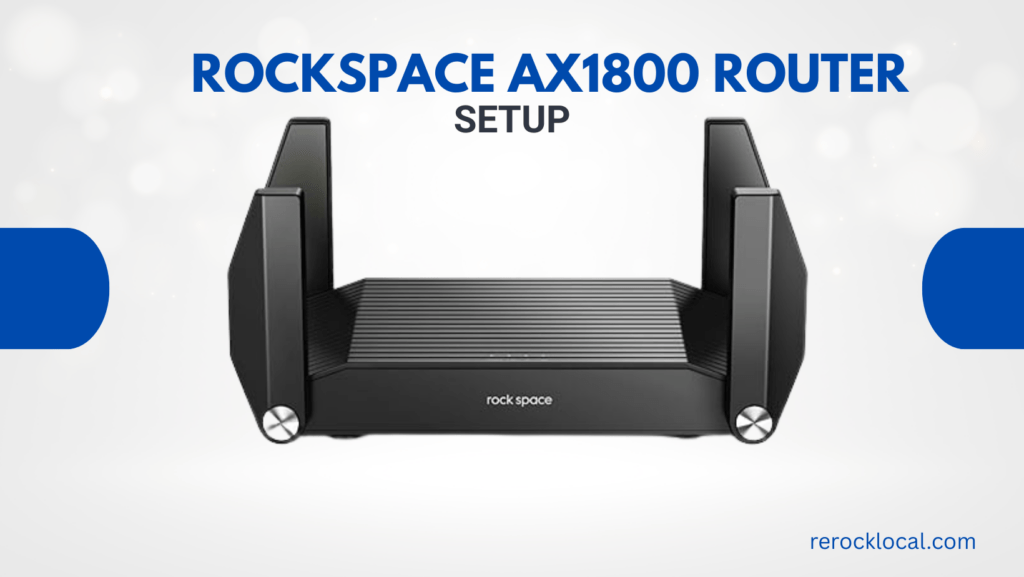
When you unbox a Rockspace AX1800 WiFi 6 router, the first thing you notice is there’s no printed setup guide in the box—just a QR code. That QR code either works perfectly or sends you to an app that takes 10 minutes to load. Most people then Google “Rockspace AX1800 setup” and find five conflicting YouTube videos.
Here’s the honest truth: the Rockspace AX1800 setup is straightforward if you know the order of steps and what to do when things get stuck. This guide walks you through it—both the app method (fastest) and the web browser method (more control)—plus real troubleshooting for the 3 most common failure points.
What You Need to Know About Rockspace AX1800 Before Starting
The Rockspace AX1800 is a dual-band WiFi 6 router supporting up to 600 Mbps on 2.4 GHz and 1,200 Mbps on 5 GHz (hence “AX1800”). It has:
- 4 Gigabit LAN ports (for wired devices).
- 1 Gigabit WAN port (where your modem connects).
- WiFi 6 features: WPA3 encryption, OFDMA, MU-MIMO for multiple devices, and BSS Color to reduce interference from neighboring networks.
- Default WiFi name (SSID) & password printed on the sticker on the bottom or back of the router.
- Default admin login: Username: admin, Password: admin (used only for the setup page, not WiFi).
Most people mix these up—the WiFi password (for connecting devices) is different from the admin password (for accessing the router’s settings page). Keep that straight, and half your confusion goes away.
Method 1: Rockspace AX1800 Setup Using the ROCK App (Fastest Way)
This is the official method Rockspace recommends, and honestly, it’s the smoothest if you have a smartphone.
Step 1: Physically Connect the Router
- Unbox the Rockspace AX1800 and find:
- Place the router in a central location—ideally on a shelf or table, not in a closet or on the floor.
- Connect your modem to the router’s WAN (Internet) port using Ethernet.
- Look for the port labeled “WAN” or “Internet” (usually it’s a different color from the other 4 LAN ports).
- Don’t plug into a LAN port by mistake—this is the #1 reason people say “no internet after setup”.
- Plug in the power adapter.
- Wait 1–2 minutes until you see the WiFi LED solid or blinking steadily (meaning the router has booted).
Step 2: Install the ROCK App
- On your phone, go to Google Play Store (Android) or Apple App Store (iPhone).
- Search for “ROCK WiFi” or “RS Home” (these are Rockspace’s official apps).
- Download and install it.
- Open the app.
Step 3: Connect Your Phone to the Default WiFi
- Go to your phone’s WiFi settings.
- Find the network name (SSID) from the router’s bottom sticker—it’ll look like “rockspace-2.4G” or “rockspace-AX1800” or similar.
- Connect to it using the password also on the sticker (it’s a random combination, usually uppercase and lowercase).
- You’ll see “No Internet” under the WiFi name—that’s normal. You’re connected to the router locally, not to the internet yet.
Step 4: Run the ROCK App Setup Wizard
- Open the ROCK app on your phone.
- Tap “+” or “Add Device” to start a new setup.
- The app should auto-detect your Rockspace AX1800—tap on it when it appears.
- If asked for a password, enter “admin” (this is the admin password, not the WiFi password).
- Choose your time zone and click Next.
- Select your ISP connection type:
- If PPPoE, enter your ISP username and password when prompted.
- The app will test the connection. If it connects, you’ll see green checkmarks.
- Set your new WiFi details:
- Confirm admin password (for accessing this setup page later)—change it from “admin” to something you’ll remember.
- Tap Finish. The router reboots and saves all settings. Wait 30–60 seconds.
- Disconnect from the old default WiFi on your phone, then connect to your new WiFi name with your new password.
- Test: Open a web browser on your phone, go to any website (Google.com, etc.). If it loads, you’re done—internet is working.
Time to complete: 5–10 minutes.
Method 2: Rockspace AX1800 Setup Via Web Browser (Manual Control)
If the app doesn’t work or you prefer the browser method, this is your alternative.
Step 1–3: Same Physical & WiFi Connection as Above
Follow Steps 1–3 from Method 1 (connect modem, power on, wait, connect phone to default WiFi).
Step 4: Access the Web Interface
- Open any web browser on your phone or computer (Chrome, Safari, Edge, Firefox).
- In the address bar, type:
192.168.1.1 or 192.168.0.1 (check your router’s label to confirm which IP). - Press Enter. You should see a login page with a password field.
- Enter the default admin password: “admin” (lowercase).
- Click “Login” or “Sign In”.
Step 5: Follow the Setup Wizard
- Select your time zone from the dropdown.
- Choose WAN connection type:
- If PPPoE, enter credentials. If DHCP, the wizard auto-configures.
- Test connection—it should show “Connected” or “Online”.
- Customize WiFi settings:
- Set new admin password (for logging into this page in future).
- Click “Apply” or “Finish”—router reboots.
- Wait 1–2 minutes for the reboot to complete.
- Disconnect from old WiFi, connect to new WiFi name + password.
- Test: Open a website to confirm internet is working.
Time to complete: 8–15 minutes (slower than the app due to manual typing).
Default Settings & Access Points (Quick Reference)
Common Rockspace AX1800 Setup Issues & Real Fixes
Issue 1: “No Internet Connection” Even After Setup (Most Common)
Why it happens:
You plugged the modem into a LAN port instead of the WAN port, or the WAN connection type is wrong (DHCP vs PPPoE).
Fix (in order):
- Power off the router (unplug for 10 seconds).
- Check the cable: Verify the modem is connected to the WAN port, not a LAN port.
- Power on the router and wait 2 minutes.
- Log back into the setup page (192.168.1.1) → check the WAN connection type:
- If PPPoE, re-enter credentials carefully (case-sensitive, watch for spaces).
- Save and reboot the router (usually an “Apply” button).
- Test again by opening a website on your phone.
Issue 2: ROCK App Won’t Connect to Router or Says “Offline”
Why it happens:
Your phone is connected to a different WiFi (not the router’s default), or the app version is outdated.
Fix:
- Check phone WiFi: Make sure you’re on the default Rockspace WiFi (from the bottom sticker), not a different network.
- Restart the ROCK app: Close it completely and reopen it.
- Update the app: Go to Google Play or App Store, search “ROCK WiFi,” and install any pending updates.
- Restart your phone’s WiFi: Go to Settings → WiFi → Toggle off/on.
- Restart the router: Unplug for 10 seconds, plug back in.
- Try again: Open ROCK app and add the device.
Issue 3: Can’t Access the Login Page (192.168.1.1 or 192.168.0.1 Won’t Load)
Why it happens:
You’re not connected to the router’s WiFi, or you typed the wrong IP.
Fix:
- Relocate the router:
- Move away from interference:
- Check connected devices:
- Restart the router if speeds suddenly drop.
Issue 5: Forgot Admin Password
Why it happens:
You changed the default “admin” password during setup and now can’t log back in.
Fix (Factory Reset):
- Unplug the router for 10 seconds.
- Locate the reset button on the back (small, recessed).
- While keeping the router unplugged, use a paperclip or pin to press and hold the reset button.
- Plug the router back in while holding the reset button for 10–15 seconds until the LED flashes rapidly.
- Release the button and wait 2–3 minutes for the router to reboot.
- The router is now reset to factory defaults—admin password is back to “admin”.
- Set it up again using the app or web method.
FAQs
2.4 GHz: Better range, more compatible with old devices, but slower. 5 GHz: Faster speeds, shorter range, cleaner airwaves. Most phones/laptops use whichever is available; you can name them both “MyWiFi” and devices auto-switch.
Use WPA3 if available (newer/safer). If an old device can’t connect, fall back to WPA2. Avoid “Open” network (no password)—that’s a security risk.
Yes. In the setup wizard, look for “Hide SSID” or “Broadcast SSID.” Disable broadcasting. But this gives almost zero security benefit—it just makes your WiFi invisible on the list.
If internet speed drops or devices disconnect randomly, restart it monthly. Just unplug for 10 seconds, plug back in.
Rockspace AX1800 is primarily a router. Some models have bridge/repeater modes in advanced settings, but it’s not the primary use case. Check your router’s manual or ROCK app for “More Settings”.